

Creating a saved prompt
- Open the Composer tab in the LOIS for Word sidebar.
- Select Prompts, then New prompt.
- Give the prompt a title and enter the instructions.
- Optionally attach reference files or Filevine context (see below).
- Save the prompt to make it available from the prompt picker.
Attaching Filevine projects and files
If your organization is connected to Filevine, you can attach one or more Filevine projects — or specific project files — to a saved prompt. When the prompt runs, LOIS for Word uses that Filevine context automatically, so you don’t have to select the project each time. This is useful for prompts that always operate against the same matter, such as recurring diligence checks, matter-specific drafting templates, or status summaries. Because the Filevine context is saved with the prompt, recurring prompts carry the right matter context automatically — even in a new chat session that has no Filevine matter pre-selected.1
Open the prompt editor
Create a new saved prompt or edit an existing one.
2
Add a Filevine project
In the prompt editor, use the Filevine project selector to search for and add one or more projects.
3
Optionally pin specific project files
Once a project is attached, you can pin specific files from that project to the prompt. If you don’t pin files, LOIS for Word uses the project as broader context.
4
Save the prompt
Save. The attached projects and files travel with the prompt every time it runs.
If a pinned file is later removed or renamed in Filevine, the prompt editor flags the missing attachment so you can update or remove it. The prompt still runs with the remaining valid attachments.
File attachments
You can attach files to a saved prompt. When you or a teammate selects that prompt from the library, the attached files are automatically included in the chat. This is useful for prompts that reference specific templates, precedent documents, or guidelines.Finding and using saved prompts
Open the Prompt Library from Composer to see all your saved prompts. Select any prompt to insert it into the chat along with any attached files.Recent prompts
The prompt library includes a Recent prompts section at the top, so the prompts you use most often are always within reach. A prompt is added here when you select it in a chat and send the message. This section appears in both the LOIS for Word prompt library and the web chat prompt selector.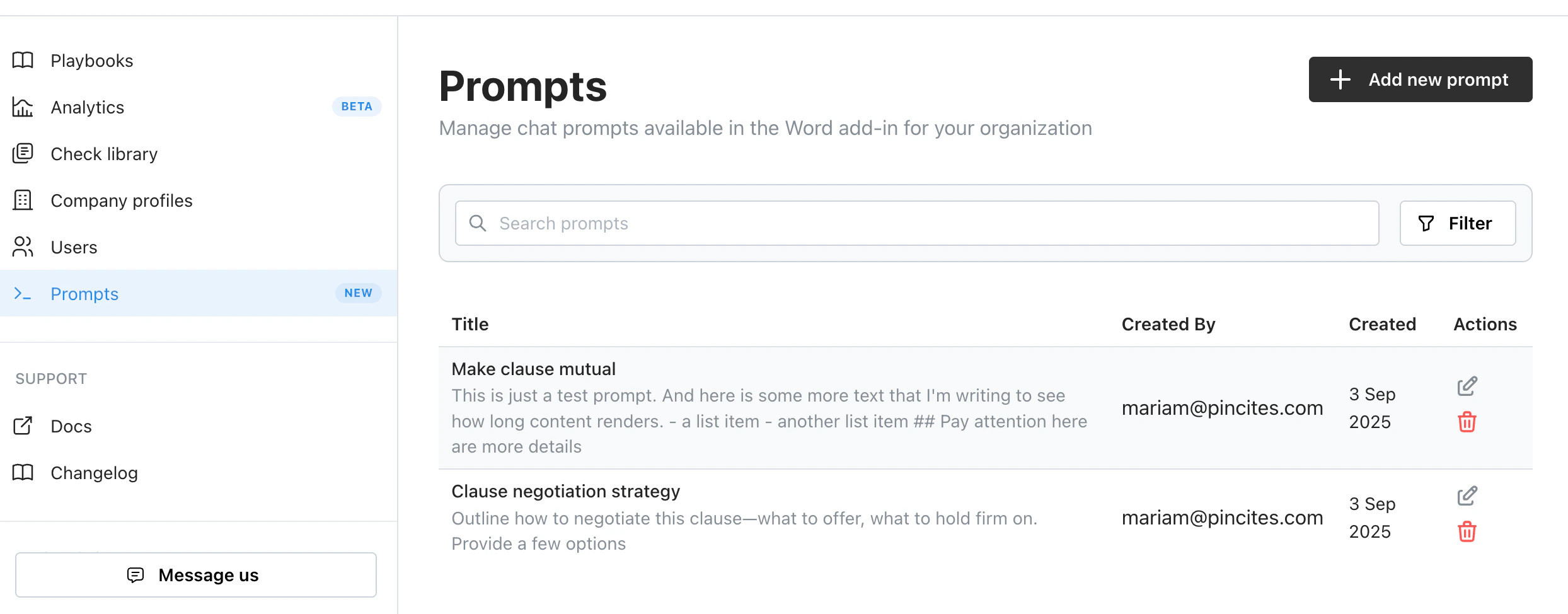
Using a saved prompt
- Open Composer in Word or the web app
- Select the prompts icon or type
/to open the prompt picker - Filter by tag or search by name
- Select the prompt to insert it into the chat input
Inserting a prompt with /p
To jump straight to your saved prompts, type /p in the composer (followed by a space) or choose Prompts from the / slash menu. Either way opens your saved prompts list, and selecting one inserts the full prompt text into the composer — ready to send as-is or edit before submitting. Prompt aliases you’ve set display in a readable format when inserted.
Editing and deleting prompts
Organization admins can edit or delete saved prompts:- Edit — update the title, text, notes, tags, or file attachments
- Delete — permanently remove a prompt from the library (confirmation required)
Tips
- Keep prompt titles descriptive — you’ll find them faster in the picker.
- Attach Filevine projects for prompts tied to a specific matter; leave them off for general-purpose prompts.
- Pin individual files when the prompt depends on a particular exhibit, template, or precedent.
- Share high-value prompts with your team so everyone runs the same review the same way.