

- Legal entity name and short name
- Jurisdiction and governing law preferences
- Business description and industry
- Standard positions or preferences referenced during review
Set up profiles
Admins can create, edit, and remove company profiles using the Profiles page in the web app: https://app.pincites.com/profiles. Create multiple profiles for different entities or subsidiaries.Create a profile
In the Profile page, select + New profile.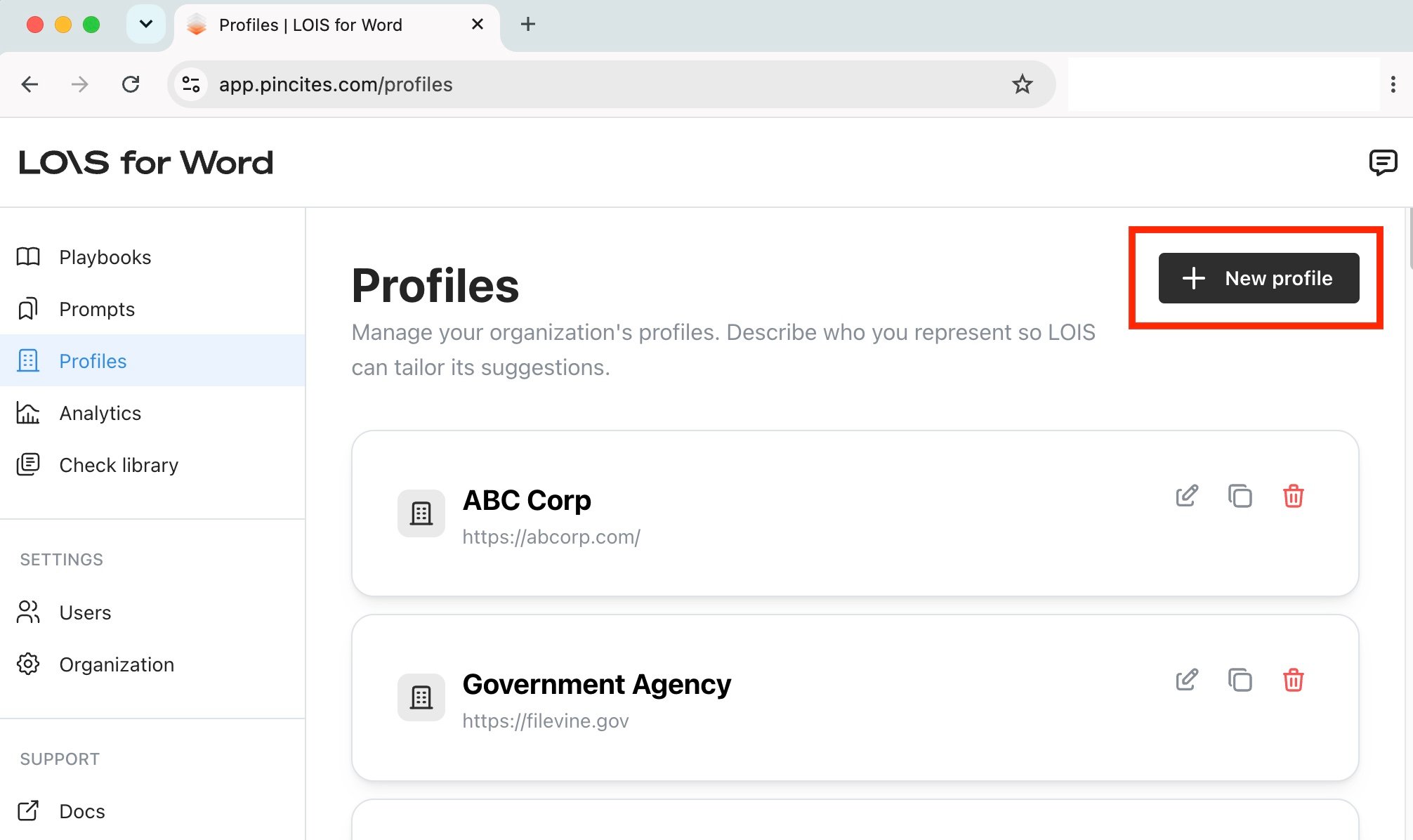
1
Autofill profile
Enter your organization’s website URL to automatically pull core data, including your legal name, business details, primary activities, and regulatory context.If you like, you can elect to fill out this information manually instead.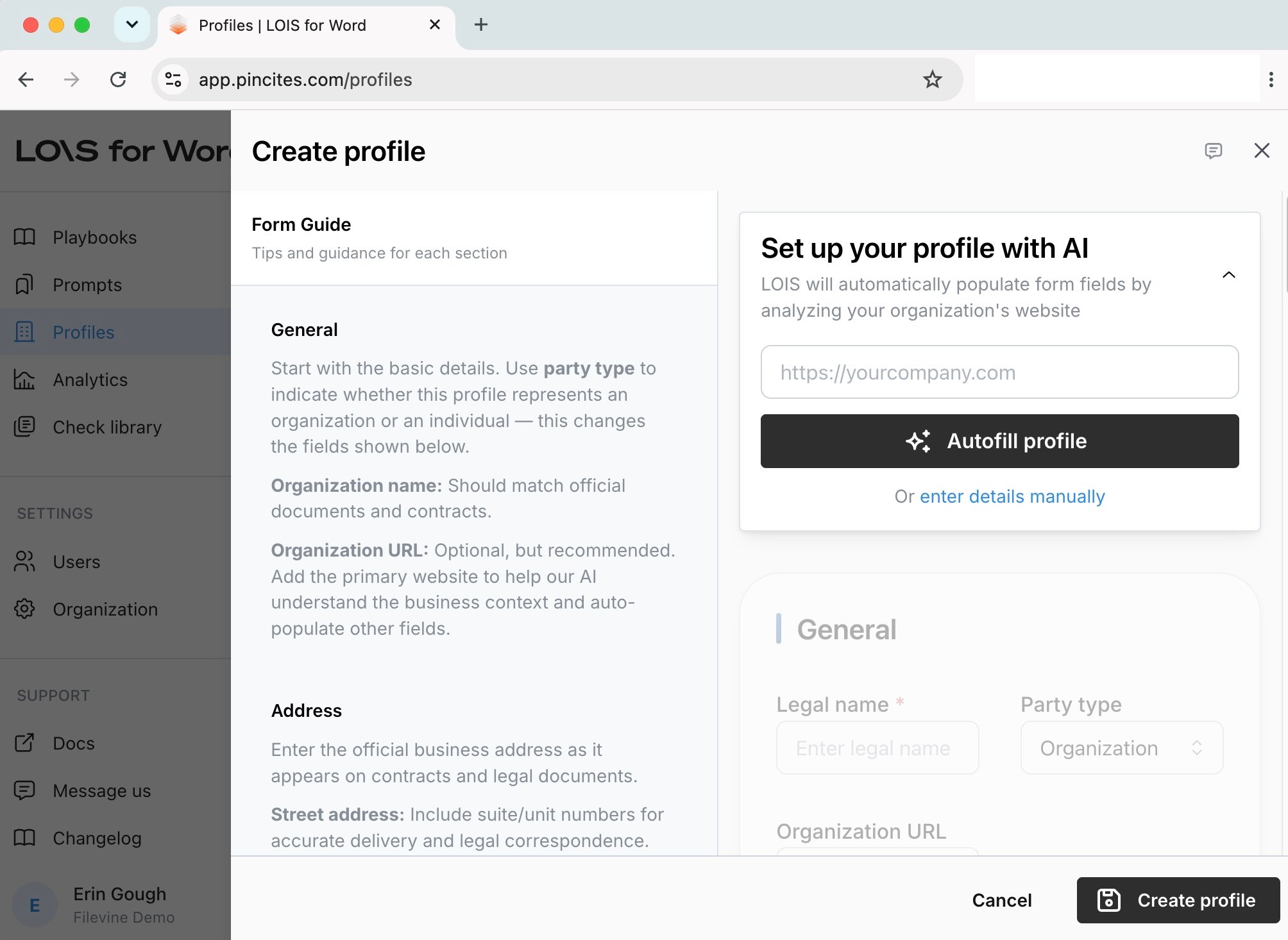
2
Optionally, set as default
Your default profile is applied unless you elect to choose something else. To make this profile your default, select Set as default profile in the General section.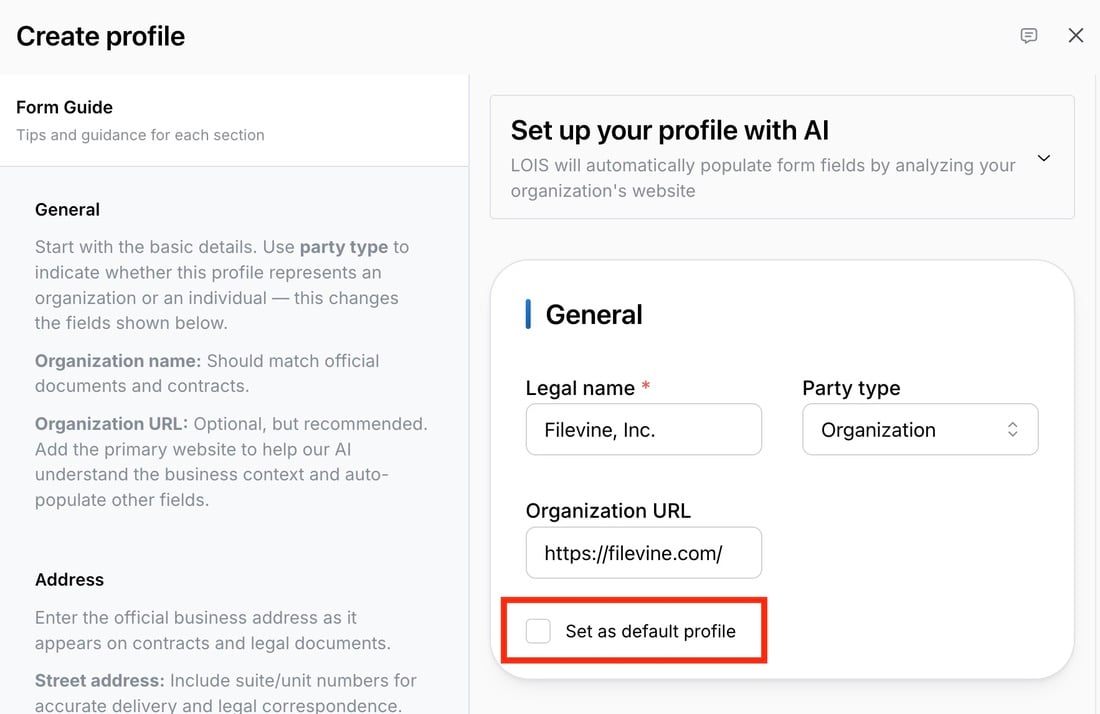
3
Review information
If you autofilled your profile, you can make edits to any fields, including the Matter context and the Legal or regulatory context.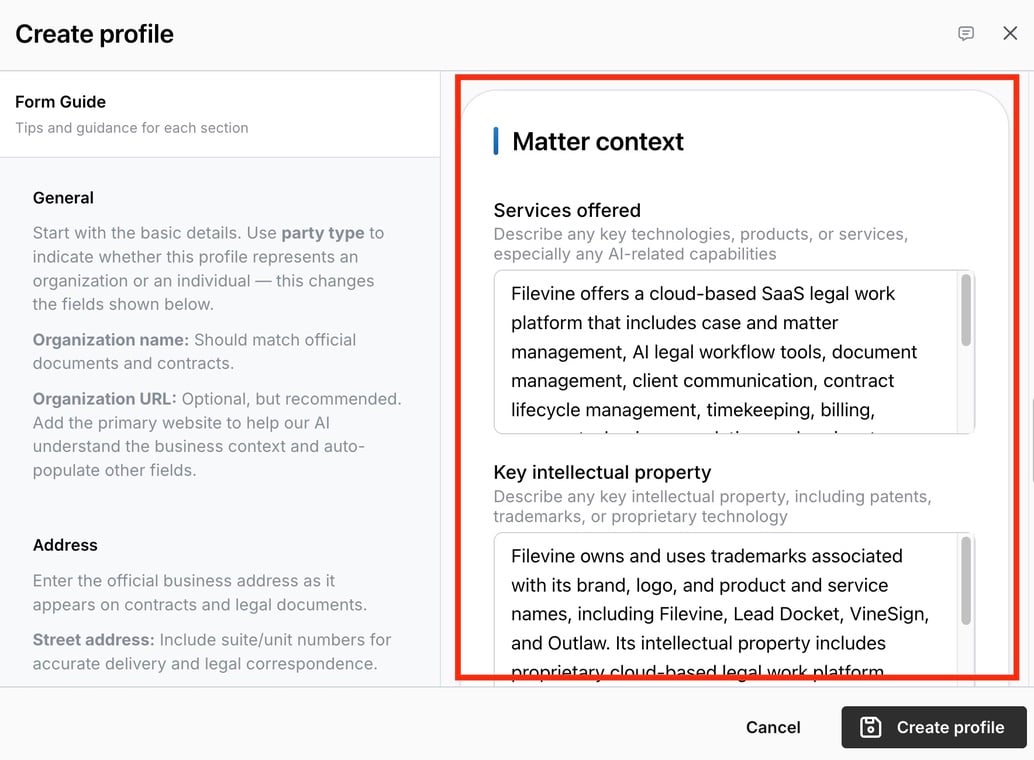
4
Fill Voice & Style
Regardless of whether you used the autofill option, you’ll need to manually define your Comment Tone (e.g., direct, collaborative, formal) and Negotiation Style. The AI uses this specific context to tailor its language recommendations during reviews.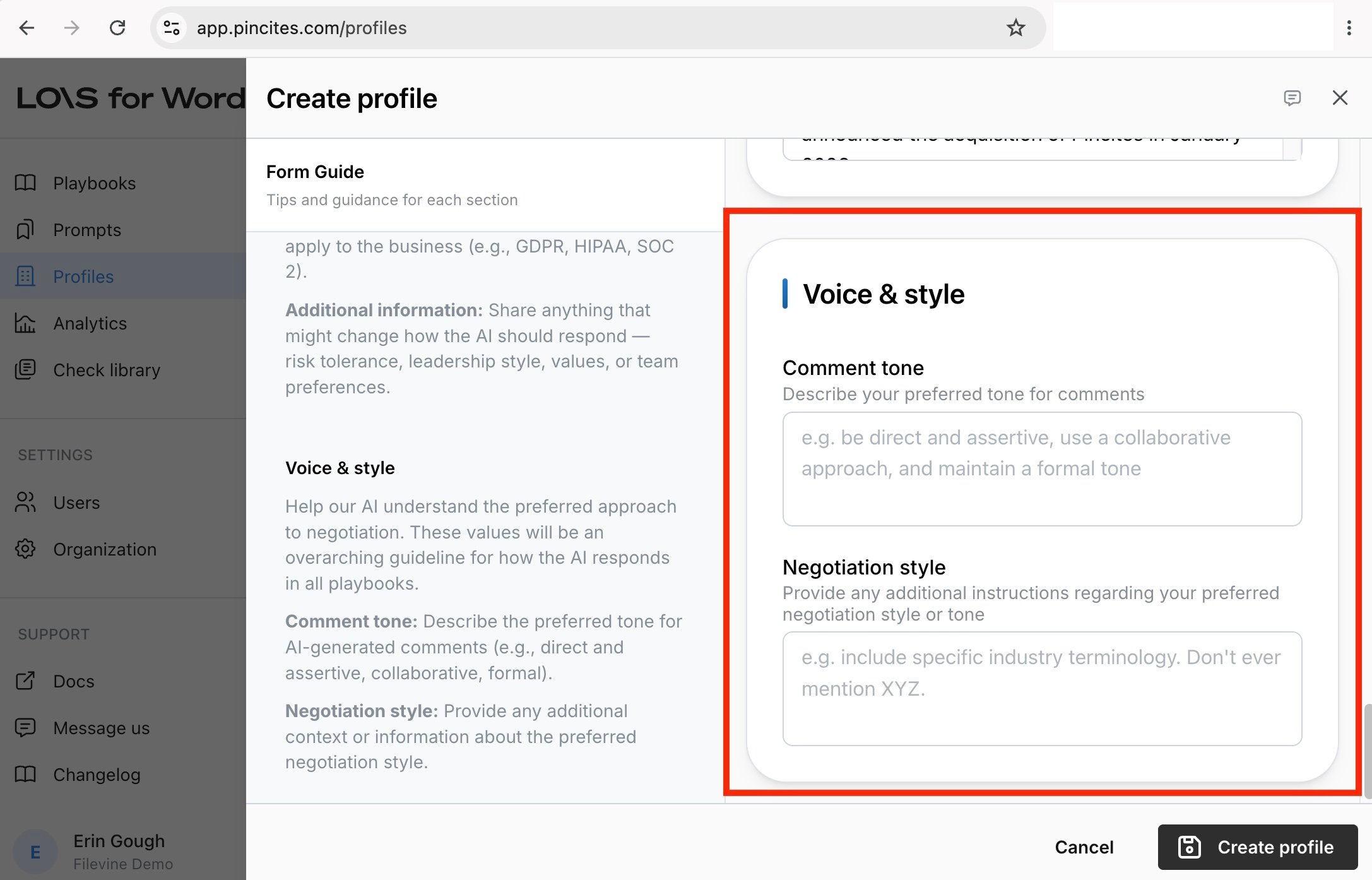
5
Create profile
Select Create profile to create and save the company profile.
Manage profiles
At any time, admins can add additional profiles, update existing profiles, and remove profiles in the Profiles page: https://app.pincites.com/profiles.Select a profile
In both the Word add-in and the web Composer, you can choose which company profile to use for the current session:- Default profile — Your organization’s standard profile is applied automatically unless you select something else.
- Specific profile — Pick any profile your organization has configured (for example, a subsidiary or a client entity if you’re acting on their behalf).
- No profile — Run LOIS for Word without any company context. Useful when you want a neutral analysis or are reviewing a document that isn’t tied to your organization.
When a playbook locks a profile, or a page context provides one, that profile takes precedence over your selection.
Choosing ‘No profile’
Select No profile from the profile dropdown in the Composer when you want LOIS for Word to respond without applying any company-specific context. Your choice is remembered for the session and won’t be overridden by the default profile fallback.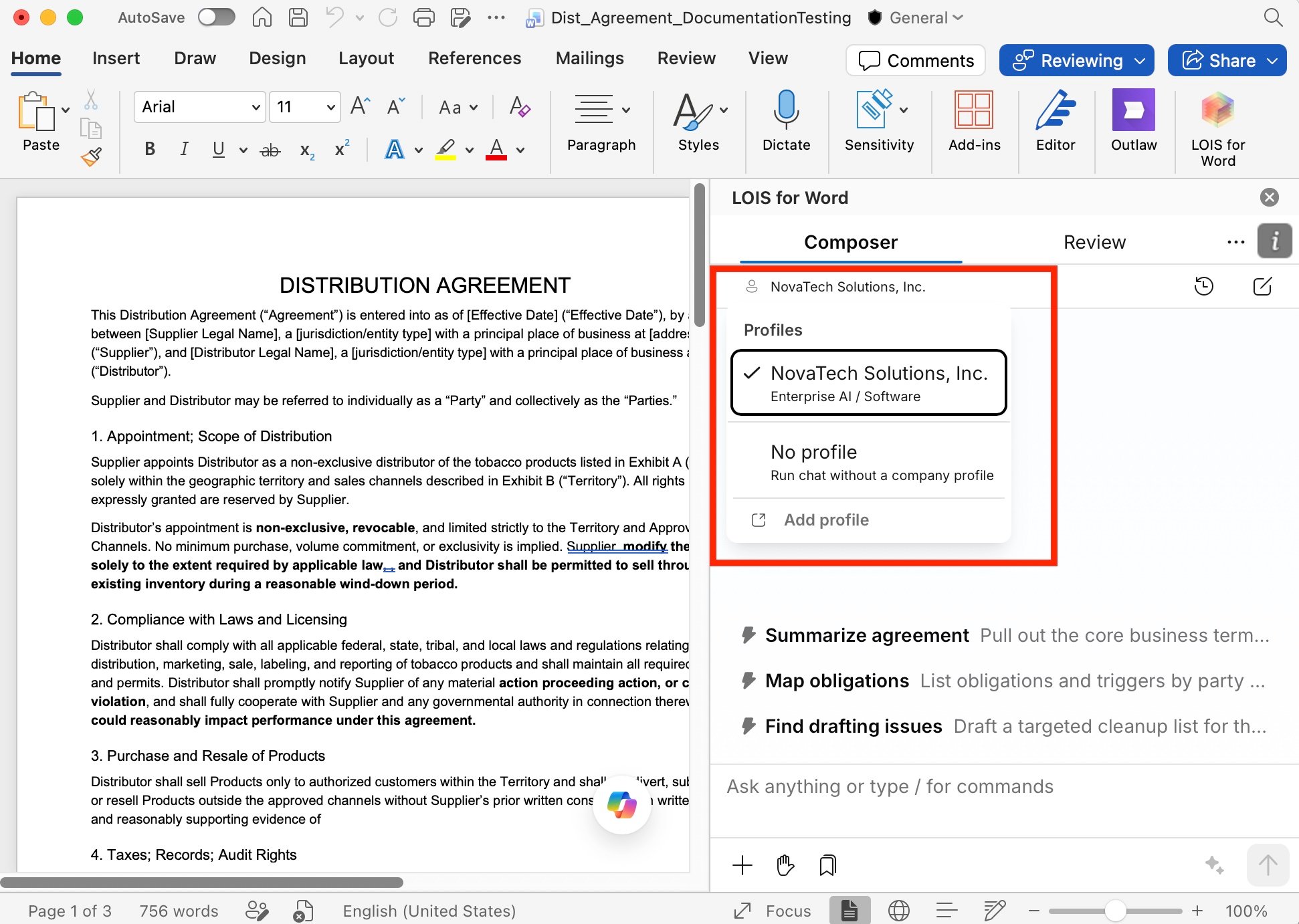
- You’re asking general legal questions unrelated to your organization.
- You’re reviewing a third-party document where your company context would skew the analysis.
- You want to see how a clause reads without any party-specific framing.