> ## Documentation Index
> Fetch the complete documentation index at: https://docs.loisforword.com/llms.txt
> Use this file to discover all available pages before exploring further.
# Manage users
> How to add colleagues to your LOIS for Word organization, assign roles, manage team access, and onboard new lawyers to the contract review workspace.
Managing your team's access ensures that everyone has the exact level of permission they need to do their jobs without accidentally altering the playbooks. User provisioning should be handled by [**account admins**](https://support.filevine.com/hc/en-us/articles/8691048633115-Common-Terms#:~:text=Account%20Admin,a%20given%20tenant.)—merely being an Admin in LOIS for Word does not allow you to add new users.
## Roles and Permissions
LOIS for Word features three user roles:
* **Admin:** Full configuration access. Admins can create and edit playbooks, checks, prompts, manage organization settings, and alter user permissions (but not add new users).
* **Contract Reviewer:** Read-only web app access. Reviewers can log in to the web platform to view all information, playbooks, and checks, but they cannot make changes.
* **Viewer:** Limited to the Microsoft Word Add-in. Viewers utilize playbooks and execute checks directly during active contract reviews but do not interact with the web platform configuration side.
Filevine products like LOIS for Word also include an organization permission level:
* **Account admin**: Only users designated as account admins can invite and provision new users or grant Account Manager administrative privileges.
## Where to manage users
Managing users requires operating from two different pages:
| | **[Account Manager](https://identity.filevine.com)** | [**Users page in LOIS for Word**](https://app.pincites.com/users) |
| :------------------------------ | :--------------------------------------------------- | :---------------------------------------------------------------- |
| **Actions** | invite and provision users | remove a user or modifying a user’s role |
| **Required role or permission** | account admin permission | Admin role |
## Provision and invite new team members
Adding brand-new users or assigning licenses requires account admin access.
To add new users, navigate to the [Filevine Account Manager](https://support.filevine.com/hc/en-us/articles/24247802696475-Account-Manager). You can navigate there from LOIS for Word by selecting **Users** > **Manage Users** > **Go to Filevine**. Or navigate there directly by going to [identity.filevine.com](https://identity.filevine.com).
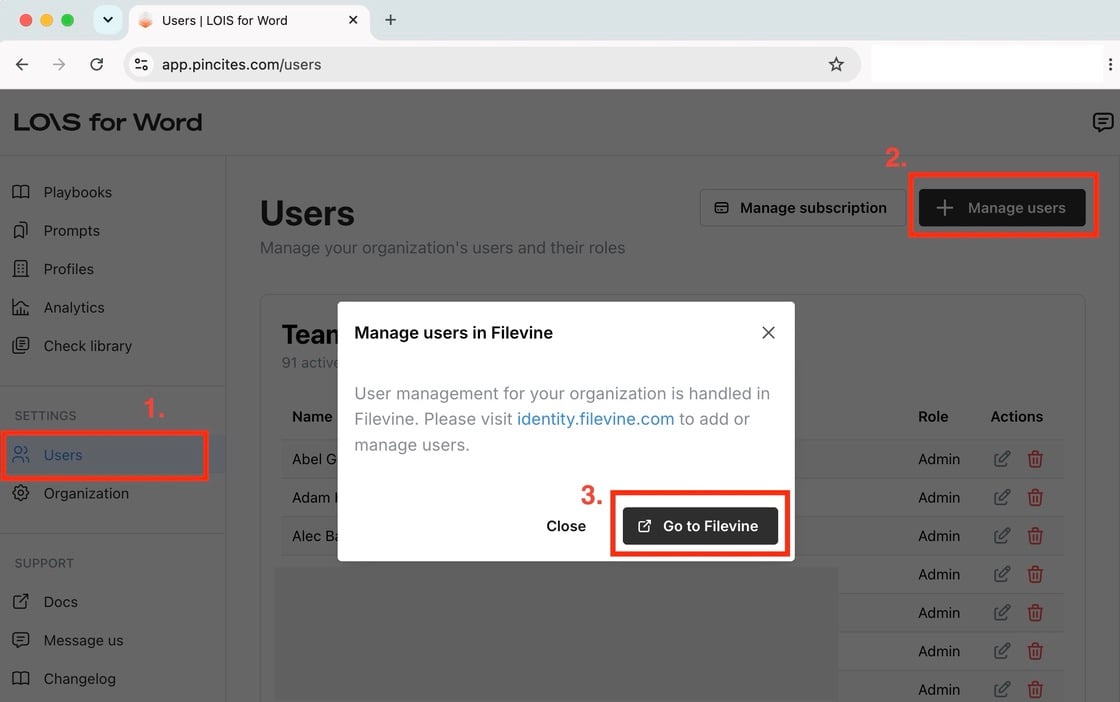 You’ll be taken to the **Users** section of the Account Manager.
 ### Invite new users
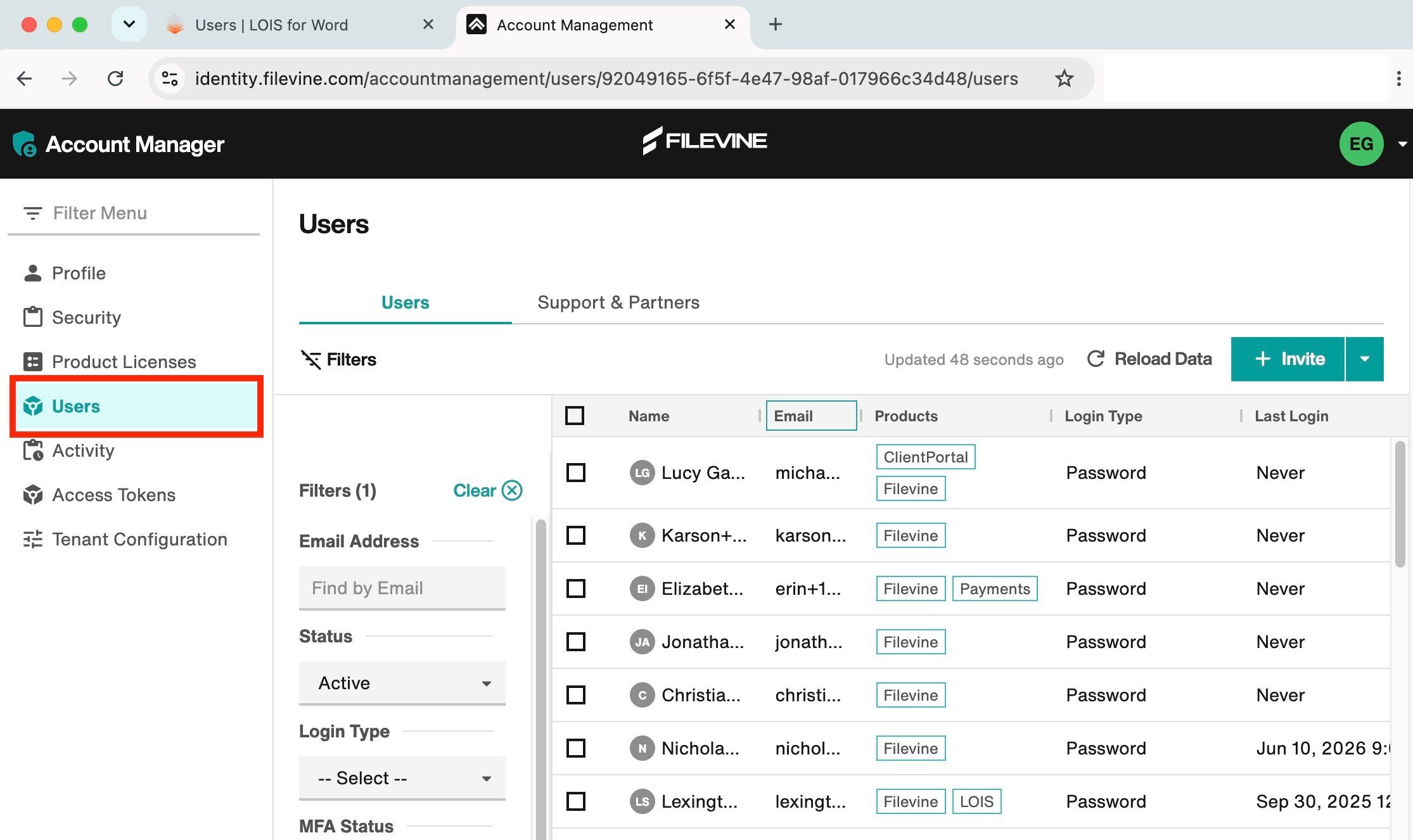
To invite a brand new user, click the **invite** button, fill out the user’s name and email address, select the LOIS for Word product, and send the invitation. The user will automatically receive their login credentials via email.
### Invite new users
To invite a brand new user, click the **invite** button, fill out the user’s name and email address, select the LOIS for Word product, and send the invitation. The user will automatically receive their login credentials via email.
 ### Provision existing users
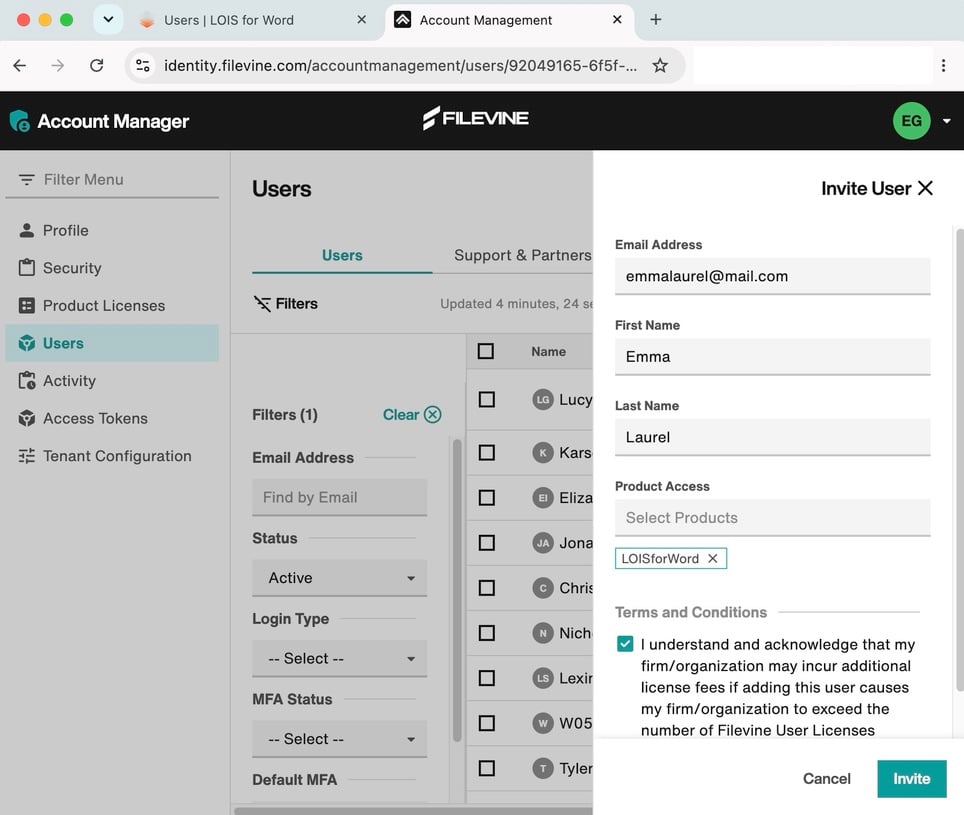
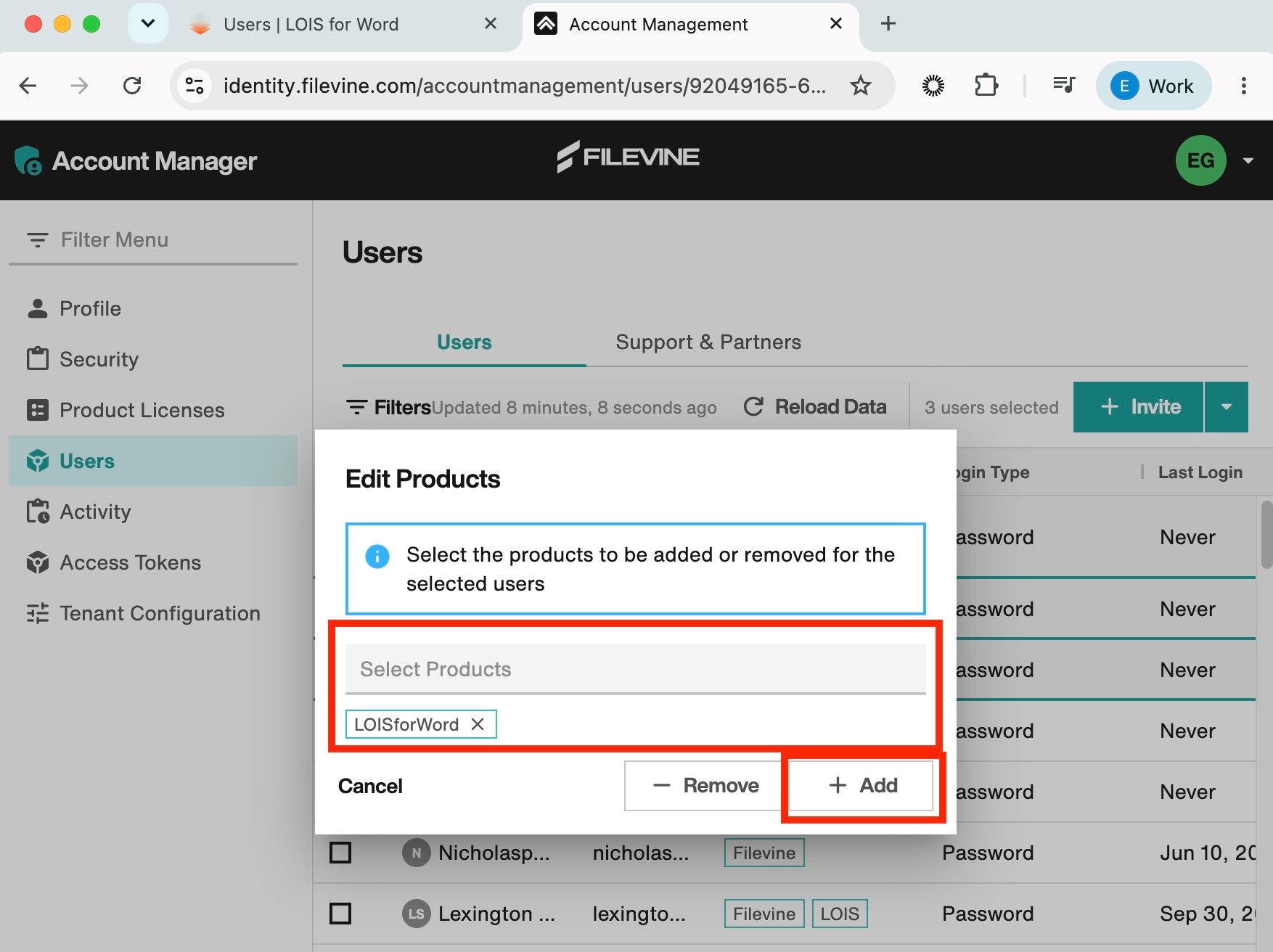
If you use other Filevine products, you may have existing users that you want to provision for LOIS for Word. Select all users you’d like to provision, click the **invite** button dropdown, and select **Edit Products**.
### Provision existing users
If you use other Filevine products, you may have existing users that you want to provision for LOIS for Word. Select all users you’d like to provision, click the **invite** button dropdown, and select **Edit Products**.
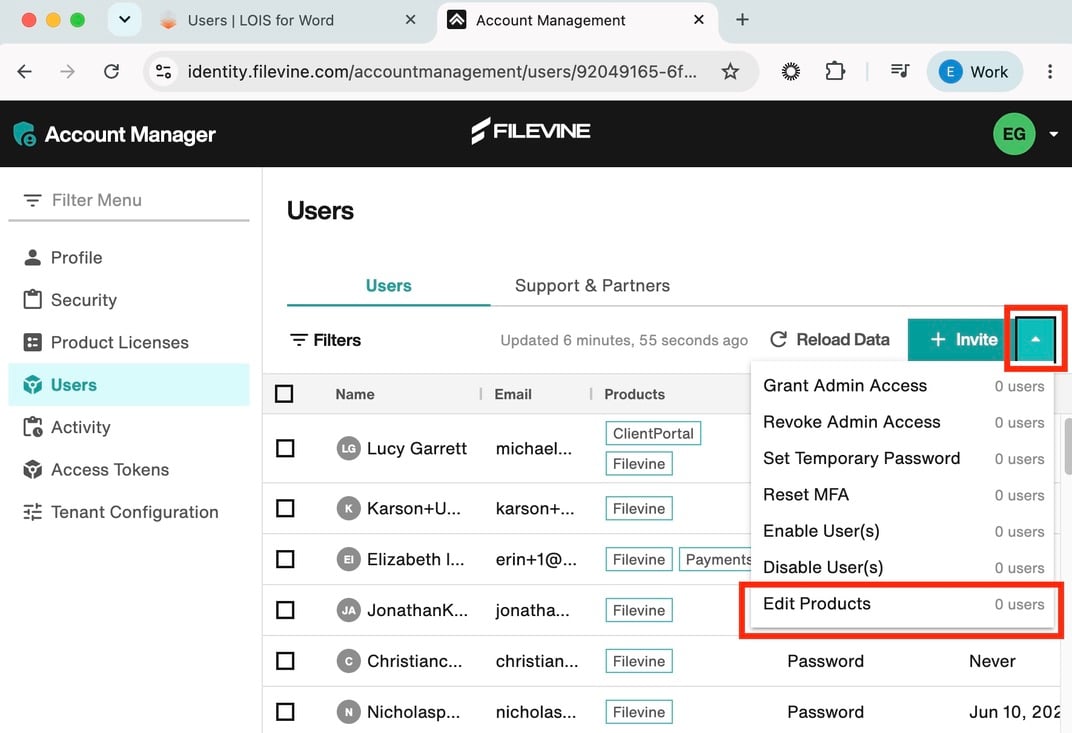 In the **Edit Products** modal, select **LOIS for Word** from the dropdown, and click **Add**.
 ## Modify or remove users
Removing or modifying users is done in LOIS for Word's [**Users** page](https://app.pincites.com/users).
### Change roles
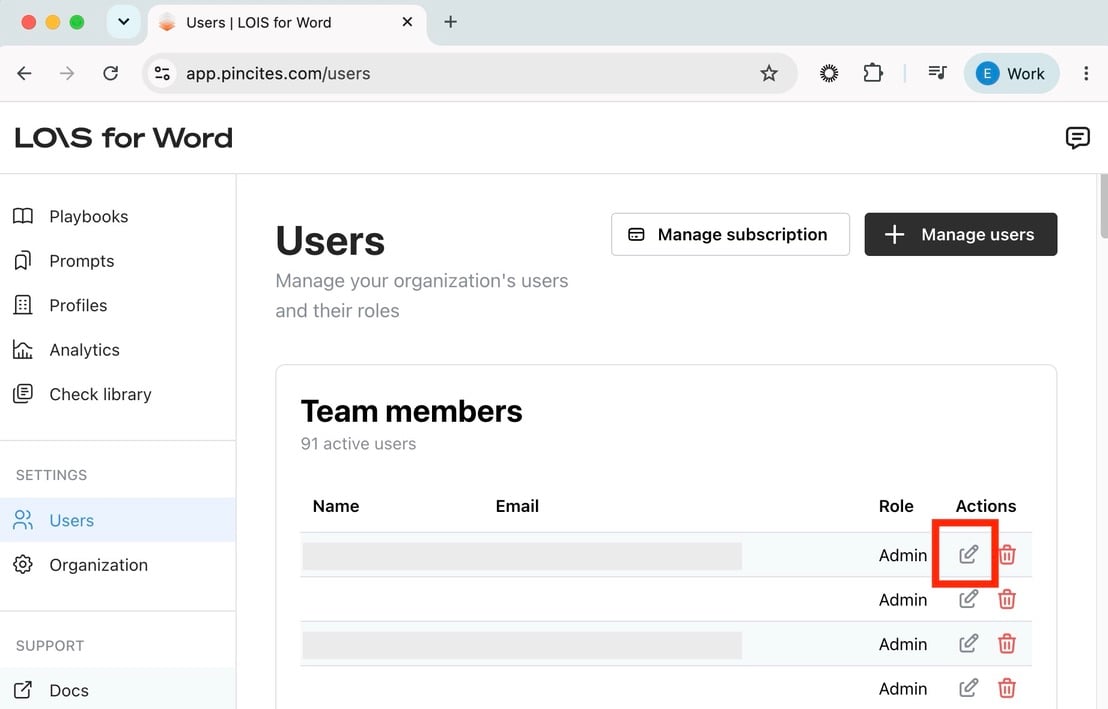
Locate the user in your list and select the **edit** icon to adjust their permission tier.
## Modify or remove users
Removing or modifying users is done in LOIS for Word's [**Users** page](https://app.pincites.com/users).
### Change roles
Locate the user in your list and select the **edit** icon to adjust their permission tier.
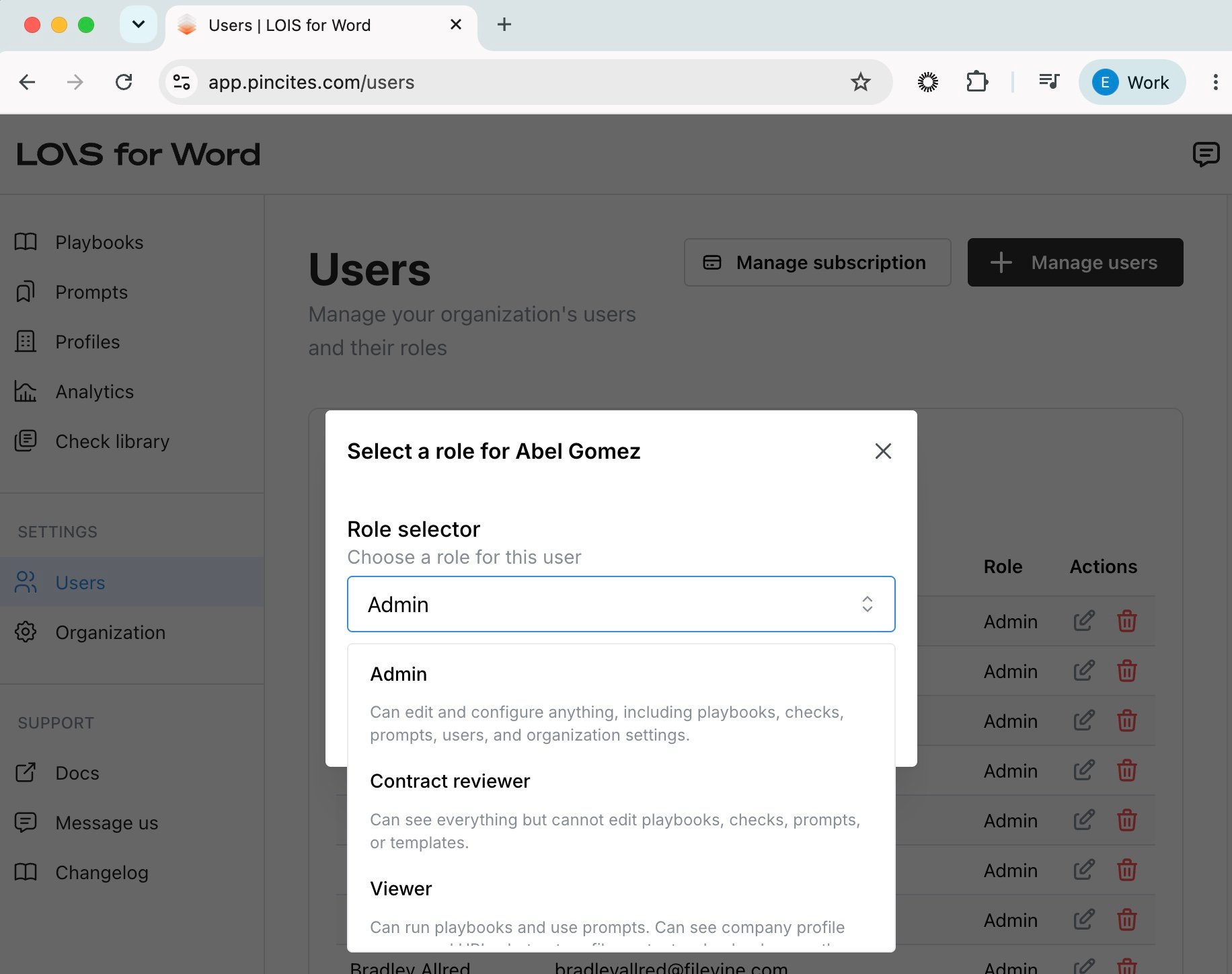
 In the modal, select a different role for the user. Select **Update user**.
 ### Remove user
Locate the user in your list and select the **trashcan** icon to remove the user. In the modal, confirm by selecting **Delete user**.
This action removes a user's permission specifically for LOIS for Word. If your firm uses Filevine for multiple products, this action will only affect their LOIS for Word access, leaving their other Filevine products untouched.
## Best practices
* Limit admin access to team members who need to manage settings and billing
* Use work emails for easier management
* Invite teams together during rollout so they can learn collaboratively
### Remove user
Locate the user in your list and select the **trashcan** icon to remove the user. In the modal, confirm by selecting **Delete user**.
This action removes a user's permission specifically for LOIS for Word. If your firm uses Filevine for multiple products, this action will only affect their LOIS for Word access, leaving their other Filevine products untouched.
## Best practices
* Limit admin access to team members who need to manage settings and billing
* Use work emails for easier management
* Invite teams together during rollout so they can learn collaboratively